
Book a demo

Send one link. Watch every document arrive.

The agent who sent the link sees the moment the customer opens it, then each photo as it uploads. No app, account or password for the customer.

Book a demo

  • Upload-only customer access
  • Void a link instantly
  • Private by default
  • AES-256 encryption at rest
  • Hosted on Microsoft Azure
  • Cloudflare DDoS protection
A sample driver's license on a car seat, next to a hand holding a phone.
The EasyDocs upload page on the customer's phone, with three files added
The upload page your customer sees.

What your agent sees

Each request keeps its own log, from the link being created to each file arriving. If someone voids the link, the log records who did it.

Illustration with fictional sample data
  1. Link opened Jordan Rivera
  2. File received drivers_license.jpg 49.04 KB
  3. File received vehicle_registration.jpg 50.06 KB
  4. File received odometer_photo.jpg 37.28 KB
  5. Live Documents submitted Jordan Rivera

Three steps from request to reviewed files

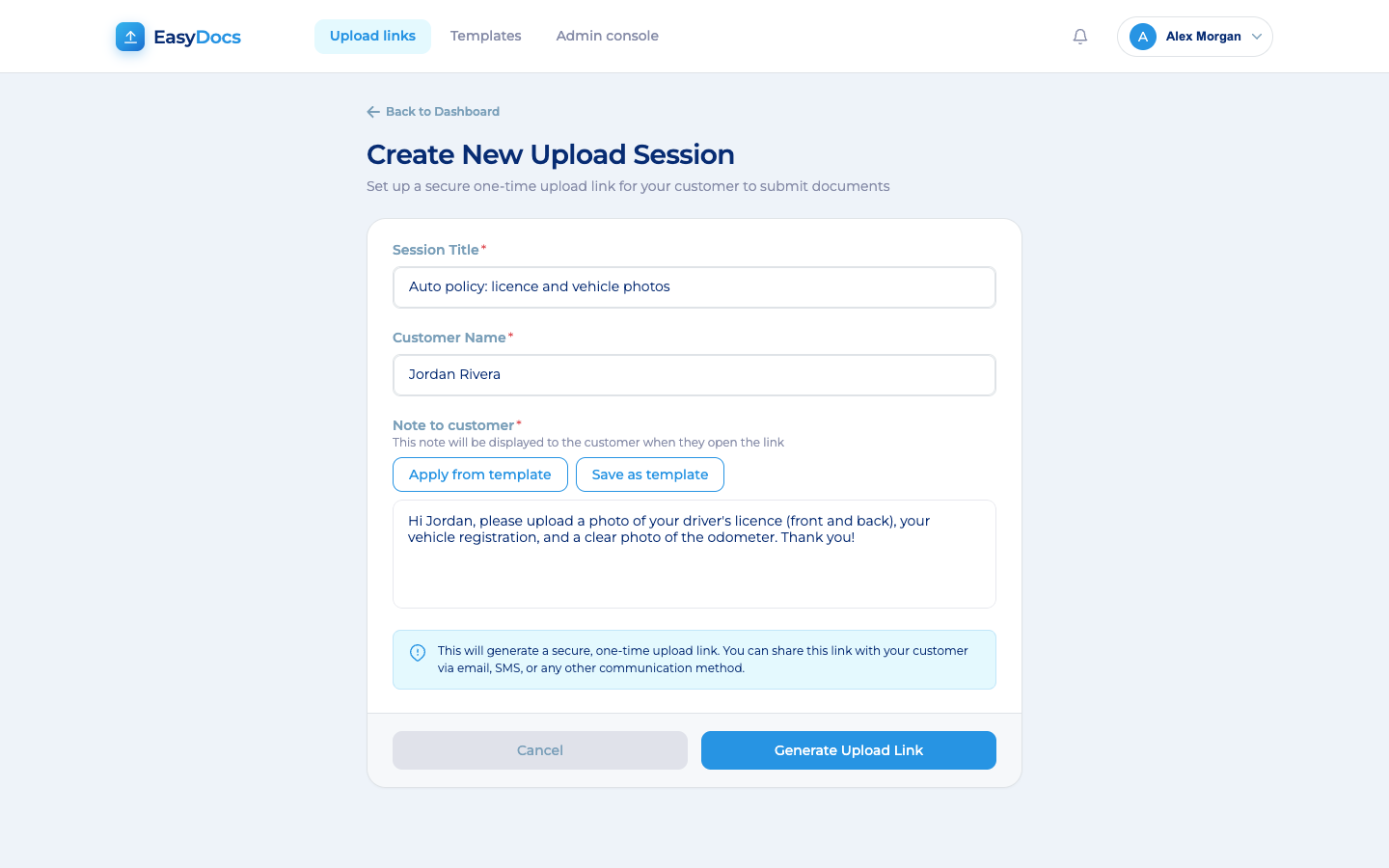
  1. Creating an upload request in EasyDocs: a title, the customer's name, a note to the customer and buttons to apply or save a template

    Step 1: Create the request

    Add the customer's name and a note on what you need, or use a saved template. Copy the secure link.
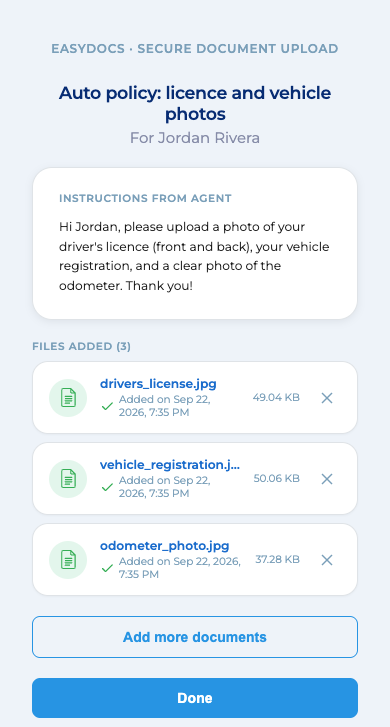
  2. The EasyDocs upload page on the customer's phone: the request title, the note from the agent, and three files added, each checked off

    Step 2: Customer uploads

    They tap the link, read your note and add photos or PDFs up to 20 MB each.

  3. Step 3: Review the files

    The team member who sent the request watches each file arrive, then previews and downloads one or all.

What your customer sees

A page in their phone browser, with no app, account or password. Your note shows first.
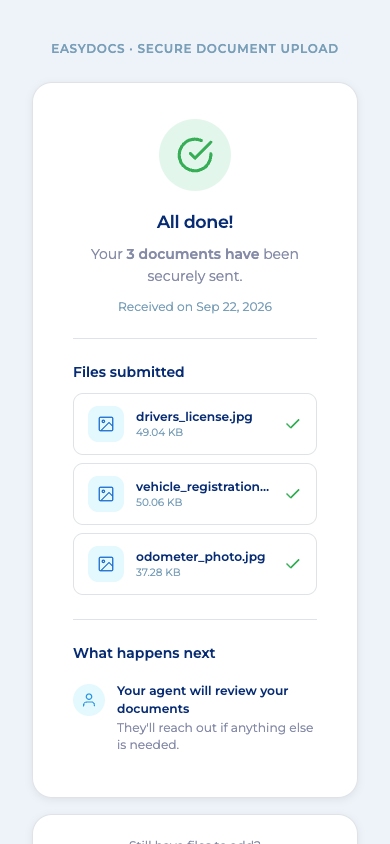
A list of what arrived
The name, size and arrival time of each file they sent, so they can confirm delivery without calling your team.
Nothing to open or download
The link only sends files in. Nobody can use it to open or download a file.
A missed page goes on the same link
They can add it on the same link until it expires. You don't create a new request.
The EasyDocs upload page on the customer's phone: the request title, the note from the agent, and three files added, each checked off with its size and the time it was added
While they upload: each file is checked off with its size and time.
The EasyDocs confirmation screen on the customer's phone, listing the three files they sent with each file's name and size
After they tap Done: the files they sent, by name and size.

Built for teams that collect sensitive documents every day

Two sample pay stubs and a sample bank statement on a kitchen table, with a pen.

Financial services

Statements, IDs and tax forms

Replace emailed statements, screenshots and tax forms with a tracked link per request.

Side view of a silver compact SUV parked in a driveway, photographed from the driver's side.

Insurance

Vehicle photos and IDs

Agents text a link, and customers send licenses and photos of each side of the car.

A sample health plan member card on a reception desk, next to a pen and a clipboard with a patient intake form.

Healthcare

Insurance cards, IDs and intake forms

Patients send them from their phone before the visit, and the files skip staff inboxes.

HR and staffing

IDs and onboarding documents

New hires send them from their phone through one secure link, instead of as email attachments.

The controls your security review will ask about

We walk your security and compliance team through these controls during the evaluation.

Upload-only customer access
Customers can send files in, but never open or download them.
Private by default
Files stay on one private request, not in staff inboxes. Only the team member who sent the request and authorized admins can see them.
Void a link instantly
Switch a link off the moment it goes to the wrong person. Anyone who opens it after that sees no name and no request details. The log records who voided it, and a void cannot be undone.
Links no one can guess
Every link is unique to one request and cannot realistically be guessed. It stops working by itself on the expiry date shown on the request.
No customer passwords
Customers never get accounts, so there are no customer passwords to store, reset or leak.
Staff kept off the customer page
Team members signed in to EasyDocs are blocked from the customer upload page.
No public file links
Storage is closed to public access. Files are only available through EasyDocs, which first checks that the person is allowed to see them.
Encryption and hosting
HTTPS with TLS in transit, and AES-256 at rest in Azure Blob Storage. Hosted on Microsoft Azure, behind Cloudflare DDoS protection.
PII and HIPAA
Built to PII data management and HIPAA standards, for personal information like IDs and pay stubs, and health information like insurance cards and intake forms.

Questions

Security

Sending the link, the record you keep and your security review.

Is it safe to send the link by text or email?

Anyone with the link can only send files in, never open or download them. They do see what your customer sees: the request title, your customer's name, your note, and the name, size and time of each file already sent. So keep account numbers and other sensitive details out of the title and the note. If a link goes to the wrong person, void it.

What record do we have of each request?

Every request keeps its own activity log: when the link was created, when your customer opened it, each file received with its name, size and time, and, if the link was voided, who voided it.

How do you support our security review?

During the evaluation, we take your security and compliance team through link security, encryption, hosting, staff sign-in, access control and logging.

Simplicity

What your customer and your team have to do.

How does our team send a request?

Copy the link EasyDocs creates and paste it into the email, text or chat tool you already use, so the request comes from a sender your customer knows.

How do we keep track of open requests?

The dashboard counts active links, links awaiting upload and links expiring soon.

How does EasyDocs fit the tools we already use?

Download one file or all at once, then file them in the system you already use. With EasyEngage, your team can request documents from inside a text conversation.

What kinds of files can customers send?

PDFs and common image formats, including photos taken with their phone. Each file can be up to 20 MB. Other file types are not accepted.

See both sides of a request

Book a short demo. We will walk your team through what the customer sees, the dashboard and the controls.

We reply within one business day.

Optional

We use what you enter here to respond to your EasyDocs demo request. We also save the page you sent it from, including any campaign tags, and your country, to see which pages and campaigns bring demo requests. We never sell your information or use it for advertising. Privacy policy